Difference between revisions of "Filters"
(→Filtering text type columns) |
(Marked this version for translation) |
||
| (One intermediate revision by the same user not shown) | |||
| Line 4: | Line 4: | ||
<translate> | <translate> | ||
| − | ==Filtering== | + | ==Filtering== <!--T:29--> |
| Line 13: | Line 13: | ||
<!--T:2--> | <!--T:2--> | ||
| − | It is possible to filter data by one or more ''Date'' or ''Text | + | It is possible to filter data by one or more ''Date'' or ''Text'' columns of the ''Data Source'' using the available '''Conditions'''. Filters can be set by [[Permission filters|users]], [[Object Filters|objects]], [[Column filters|columns]] or [[Dashboard|dashboards]]. |
| Line 62: | Line 62: | ||
| − | ===Filtering text type columns=== | + | ===Filtering text type columns=== <!--T:16--> |
| − | <!--T:16--> | ||
Text type columns can be filtered by selecting the desired values when using ''Equal to, Not equal to, Less than, Greater than, Less or equal to or Greater or equal to''. | Text type columns can be filtered by selecting the desired values when using ''Equal to, Not equal to, Less than, Greater than, Less or equal to or Greater or equal to''. | ||
| Line 82: | Line 81: | ||
| − | <!--T:17--> | + | ===Filtering date type columns=== <!--T:17--> |
| − | |||
| + | <!--T:30--> | ||
Date type columns can be filtered by date parts (expand the date column by the plus icon), by preset Shortcuts (like ''Current Year'' and ''Next 2 months'') or by selecting a specific date. | Date type columns can be filtered by date parts (expand the date column by the plus icon), by preset Shortcuts (like ''Current Year'' and ''Next 2 months'') or by selecting a specific date. | ||
| Line 91: | Line 90: | ||
[[File:Filter_dates_calen_en.png|link=]] | [[File:Filter_dates_calen_en.png|link=]] | ||
| − | |||
| − | |||
| − | |||
| − | |||
| − | |||
| − | |||
| − | |||
</translate> | </translate> | ||
Latest revision as of 12:50, 17 July 2025
Filtering
 See a video tutorial about how to use filters.
It is possible to filter data by one or more Date or Text columns of the Data Source using the available Conditions. Filters can be set by users, objects, columns or dashboards.
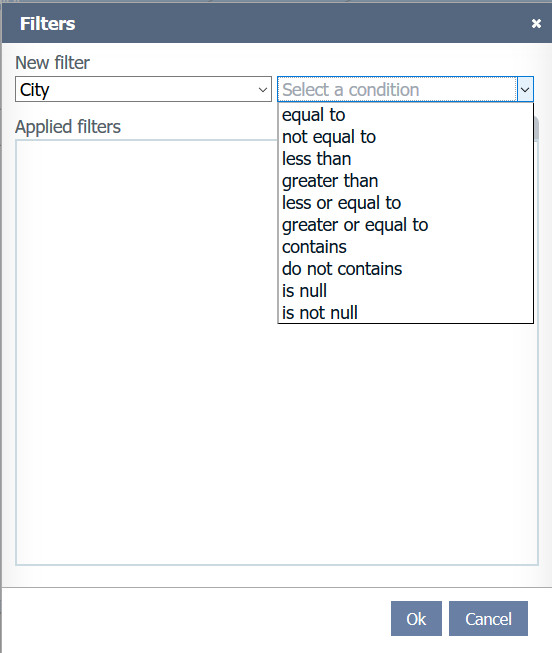
Operators
- Equal to: Data must be equal to the selection. Multiple values can be selected by holding CRTL key or using advanced selection mode;
- Not equal to: Data must be different from the selection. Multiple values can be selected;
- Less than: Data must be lesser than the selection (chronological for Date columns and alphabetical for Text columns);
- Greater than: Data must be greater than the selection (chronological for Date columns and alphabetical for Text columns);
- Less or equal to: Data must be lesser or equal to the selection (chronological for Date columns and alphabetical for Text columns);
- Greater or equal to: Data must be greater or equal to the selection (chronological for Date columns and alphabetical for Text columns);
- Contains: Data must contain, starts with or end with the input text. For Text columns only;
- Do not contains: Data must not contain, starts with or end with the input text. For Text columns only;
- Between: Date must be between the chronological selection. For Date columns only;
- Not between: Date must be not between the chronological selection. For Date columns only;
- Is Null: Data must be null (empty);
- Not Null: Data must be not be null (not empty);
Filtering text type columns
Text type columns can be filtered by selecting the desired values when using Equal to, Not equal to, Less than, Greater than, Less or equal to or Greater or equal to.
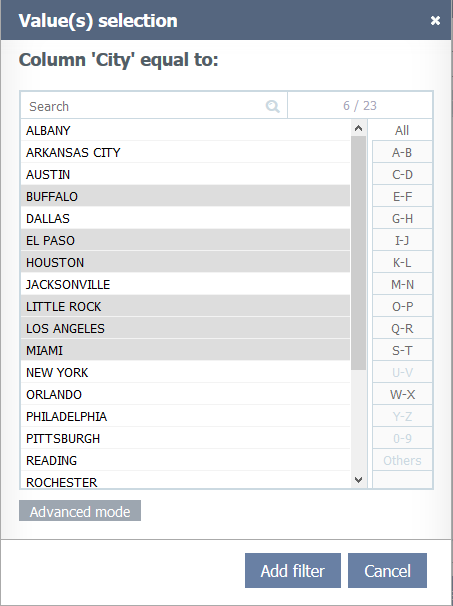
Basic selection screen.
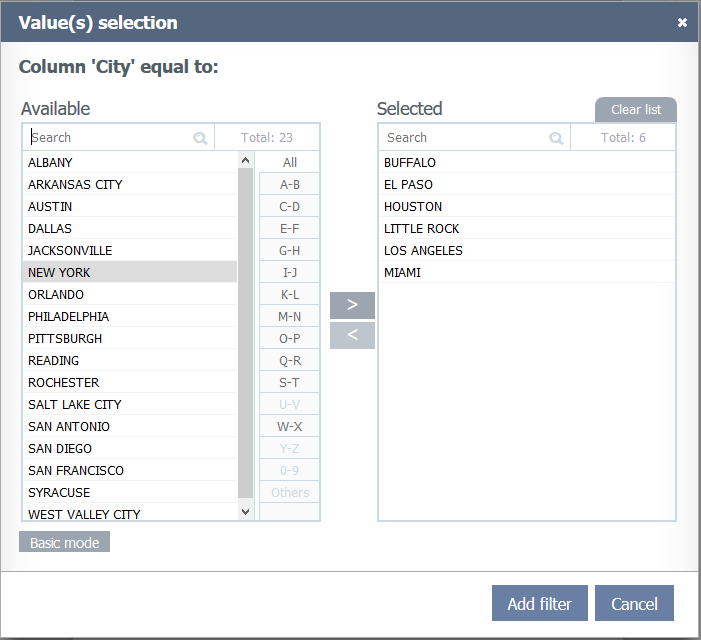
Advanced selection screen.
Filtering date type columns
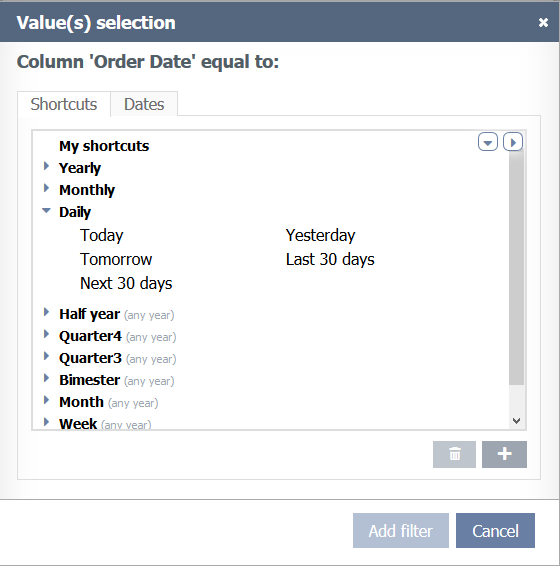
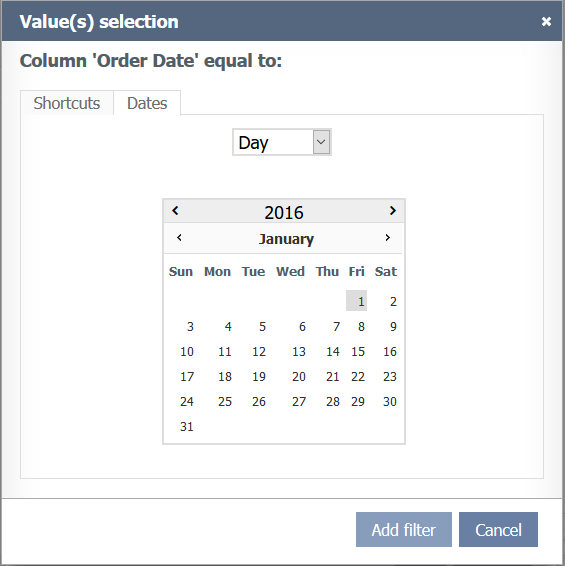
Date type columns can be filtered by date parts (expand the date column by the plus icon), by preset Shortcuts (like Current Year and Next 2 months) or by selecting a specific date.